
Workspaces & Panes
Workspaces
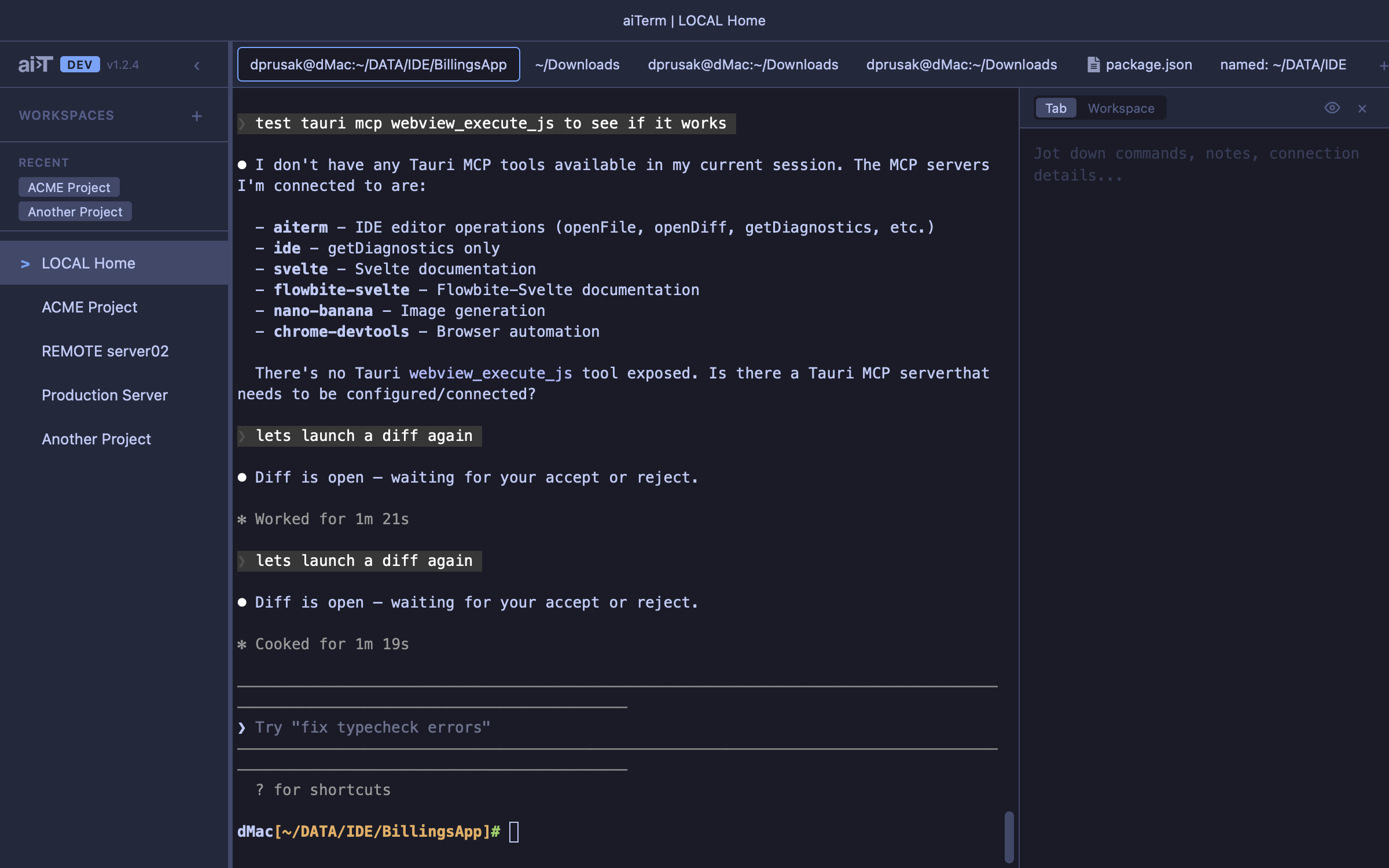
Group your terminals by project. Each workspace has its own pane layout, tabs, and context. Switch between “ACME Project” and “Production Server” without losing your place in either.
Features
- Named workspaces — organize by project, client, or however you work
- Independent layouts — each workspace has its own split pane tree
- Drag and drop — reorder workspaces in the sidebar
- Sort options — default (manual), alphabetical, or recent activity
- Tab count — optional display of tab count after workspace names
- Recent workspaces — collapsible section, toggleable in preferences
- Workspace notes — markdown notes scoped to the whole workspace
Panes
Panes are the containers within a workspace. Each pane holds one or more tabs (terminal, editor, or diff).
Split Panes
- Horizontal and vertical splits — create any layout you need
- Drag to resize — adjust split ratios by dragging the divider
- Recursive splits — splits within splits for complex layouts
- Terminal persistence — terminals survive split tree changes via the portal pattern
Per-Tab Notes
Each tab has its own markdown notes panel. Track TODOs, paste connection strings, jot down what you’re debugging — right next to the terminal doing the work.
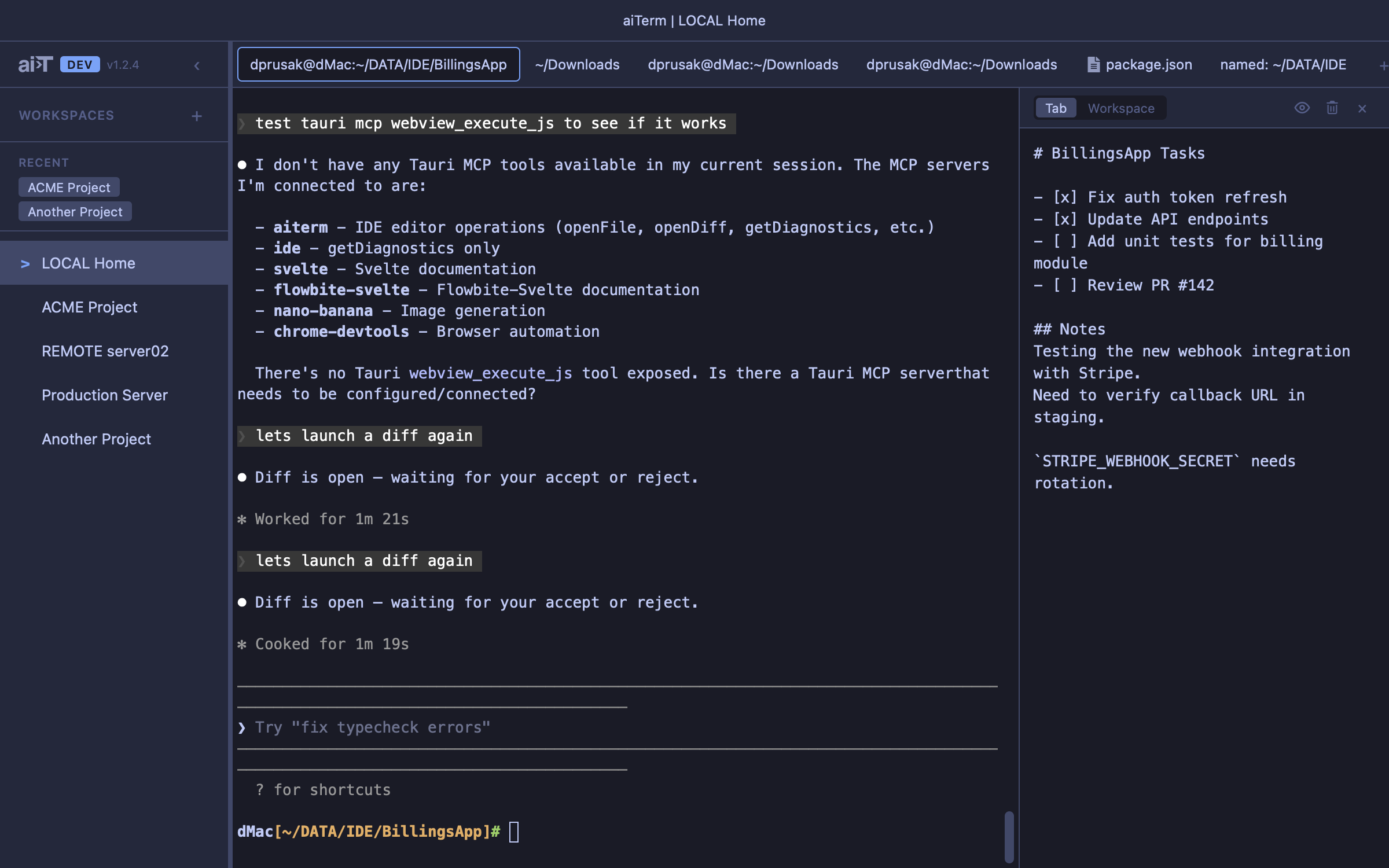
- Markdown or plain text — your choice per tab
- Interactive checkboxes — rendered in preview mode
- Edit and preview modes — state persisted per tab
- Configurable — font size, font family, panel width